Why BRIM
Four ways to clip
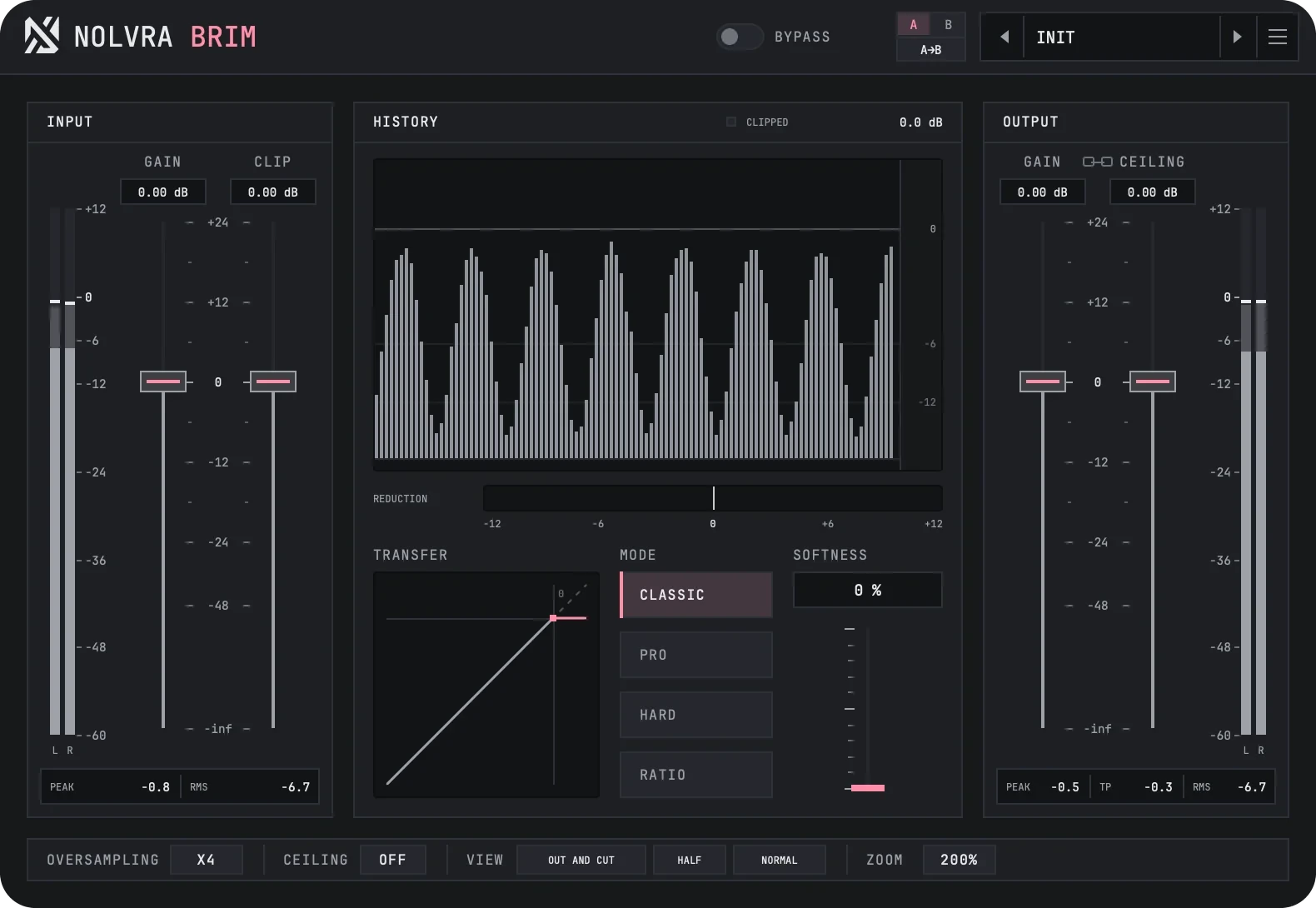
BRIM clips the peaks with four curves and shows what every cut took.
Pick the curve
Classic, Pro, Hard or Ratio, with softness from 0 to 100%.
Set the oversampling
From x1 to x256, x4 by default, with its own factor for render.
Read every cut
Input and output meters, true peak, and the dB clipped off.
The film
Louder, no higher peak
Watch BRIM clip the tips of the hits and give the level back.
- 00:09Clip, only the tips of the hits
- 00:20About 5 dB louder. The peak stays down.
- 00:43Four shapes for the edge
- 00:59x256, only the real harmonics
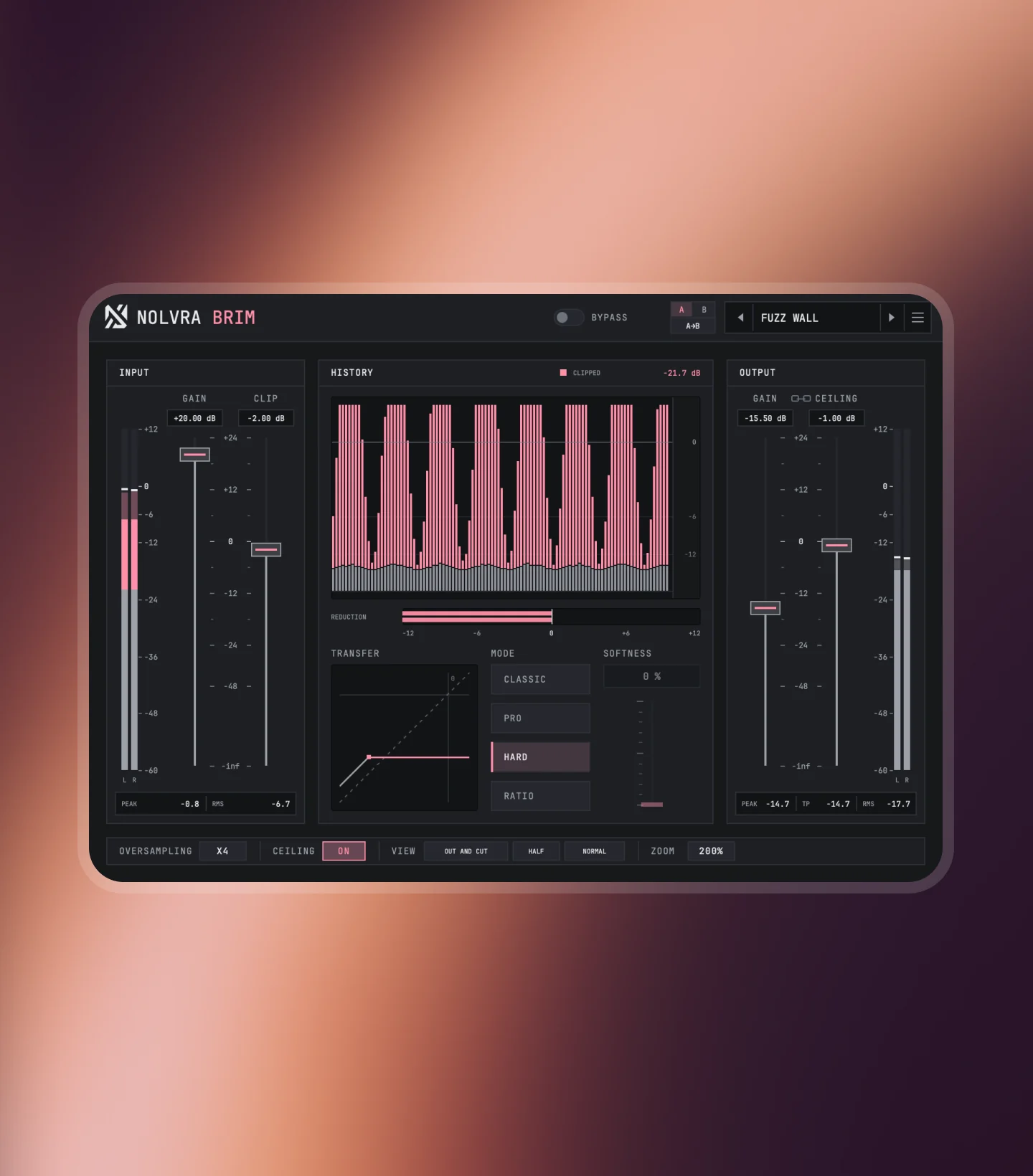
- 01:05Pink is what got cut
Clip
Shape the clip
Set the clip level, pick a curve and round it with softness. The transfer curve draws what the curve does.
- Four curvesClassic, Pro, Hard and Ratio
- SoftnessRound the entry from 0 to 100%
- Oversamplingx1 to x256, x4 by default
Meter
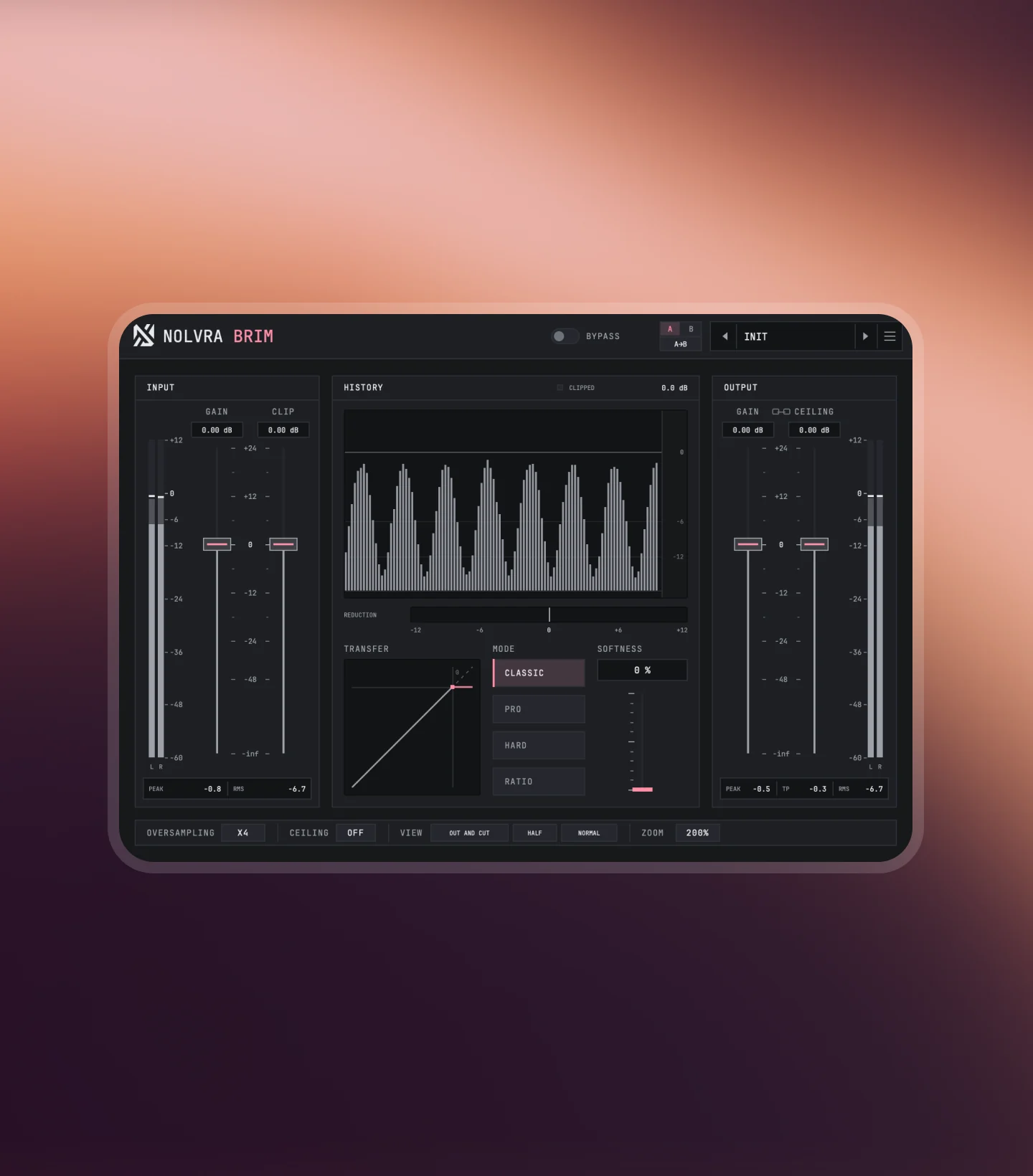
See what was cut
The input meter reads before the gain, the output meter after gain and ceiling, with true peak.
- MetersInput and output, +12 to -60 dBFS
- CeilingHold every output sample under a level
- 61 presetsNine folders, from drums to mastering
Product details
Technical specs
The practical details, organized for a quick scan.
Engine
Clipping
- ModesClassic/
Pro/ Hard/ Ratio - Softness0 to 100%
- Oversamplingx1 to x256
Workflow
Session ready
- Presets61 in 9 folders
- CompareA/
B - Window80 to 200%, remembered
- MetersIn/
out, true peak
Output
Plugin formats
- FormatsAU/
VST3 (macOS) · VST3 (Windows) - Architecture64-bit
- ProductClipper
Platforms
System support
- Version1.0.0
- Installer14.1 MB (macOS) · 4.7 MB (Windows)
- macOS11 or later
- MacApple Silicon
- Windows64-bit (x64)
- LicenseHub sign-in or key
Available for macOS and Windows. On Mac it needs Apple Silicon; on Windows it is a 64-bit app. VST3 and AU on Mac, VST3 on Windows. Full system requirements
Setup flow
From checkout to session
Three steps, then BRIM is ready inside your DAW.
Purchase
Complete your purchase and receive your BRIM license.
Install from Hub
The Nolvra Hub installs it and keeps it updated.
Rescan & clip
Rescan plug-ins in your DAW, then load BRIM.
FAQ
Before you buy
How do I install BRIM?
Through Nolvra Hub, which installs it and keeps it updated. On Mac it installs into your own user folders with no administrator password. Then rescan plug-ins in your DAW.
Where is my license key?
In Nolvra Hub, under Licenses. All-Access members need no key: open Nolvra Hub and sign in.
Which clip modes are there?
Four: Classic, Pro, Hard and Ratio. Hard cuts flat at the clip level; the others use softness, and Pro and Ratio add up to 12 dB below the threshold as softness rises.
Is Windows included?
Yes. BRIM runs as a 64-bit VST3 on Windows and as VST3 and AU on macOS 11 or later.
Is there a trial?
Seven days, no card, and nothing charges itself when it ends. BRIM is also in All-Access, so the plan opens it along with the other plugins in the plan.
Can I request a refund?
Yes, within 14 days of purchase for a one-time purchase, provided the license has not been activated. The full terms are in the refund policy.
Further reading
Guides that use it
How BRIM fits a session, written out step by step.
Start with Nolvra BRIM
Clip with the numbers in view
Four curves, 61 presets and meters that show every cut.
$39